

Notion for e-commerce sellers: one system for products, suppliers and weekly numbers
A practical Notion setup for e-commerce: products, suppliers, purchase orders, stock and weekly numbers in one connected system, with a 15-minute weekly routine.
Most e-commerce sellers we talk to run their business across a handful of places. Stock lives in a spreadsheet. Supplier agreements live in chats and email threads. Sales sit in the shop or marketplace dashboard. And the plan for next week lives in someone’s head.
It works, until it doesn’t. A reorder gets missed because nobody checked stock in time. The same product text gets rewritten for three channels. A purchasing decision is made on gut feeling, because pulling the numbers together takes an afternoon.
You don’t need another app to fix that. You need your product, supplier and number data connected, in one place you actually open every week. In this guide we show the Notion setup we use for e-commerce work: a database map you can copy, plus the weekly routine that keeps it current.
Selling on bol, Amazon or your own webshop?
We build this system for you → Notion consulting
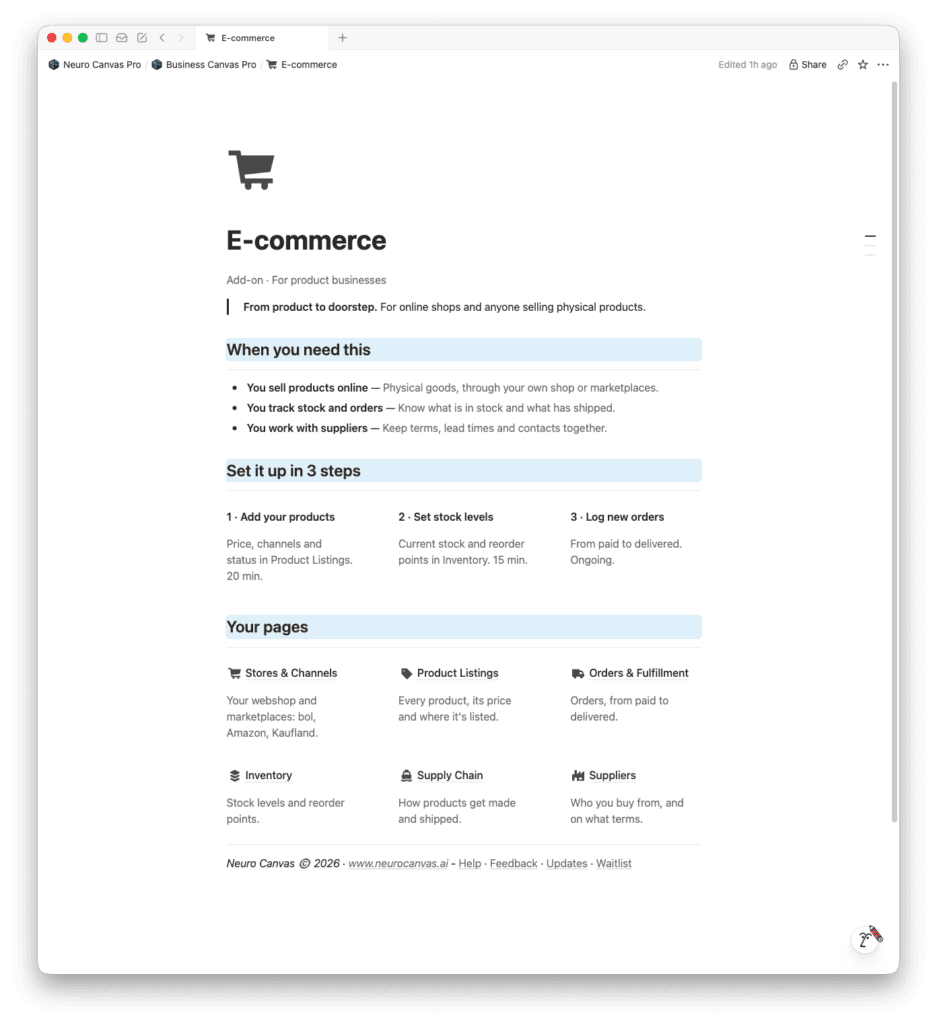
Why Notion works for e-commerce sellers
Notion is not a webshop and not an inventory platform. It’s the layer above them: the place where you plan, decide and record what happens next. Its strength is relations. A product can link to its supplier, its purchase orders and its listing content, and you can see all of that from one page.
Your shop, marketplaces and accounting software stay where they are. Notion connects the information you need to make decisions.
The database map
Six databases cover most of the work around a shop. You don’t need all of them on day one (more on that below), but this is the full picture.
1. Products / listings
One row per product or SKU. This is the centre of the system.
- SKU and product name
- Channel (multi-select): own shop, bol, Amazon or other marketplaces
- Status: idea, sampling, live, paused, discontinued
- Cost price and selling price, both excluding VAT
- Margin (formula):
(prop("Selling price") - prop("Cost price")) / prop("Selling price"), shown as a percentage - Relations to Suppliers, Purchase orders and Content
Create views per channel and per status, so you only see the live listings for the channel you’re working on.
2. Suppliers
One row per supplier.
- Contact person, email and preferred way of contact
- Lead time in days
- Minimum order quantity (MOQ)
- Payment and shipping terms
- Relation to Products
Keep agreements on the supplier page itself: prices, terms and anything you agreed in a call. The next time you need it, you don’t have to search a chat.
3. Purchase orders
One row per order you place with a supplier.
- Relation to Supplier and to Products
- Quantities, on the page itself or in a line-item database for larger orders
- Order date and expected arrival
- Status: draft, ordered, paid, shipped, received
A board view by status shows at a glance what is on its way and what is late.
4. Stock
You can keep stock as properties on Products, or as a separate database if you work with several locations. Either way, you need three fields:
- Current stock
- Reorder point: the level at which you need to order, based on how fast the product sells and the supplier’s lead time
- Reorder now (formula):
prop("Current stock") <= prop("Reorder point")
A view filtered on “Reorder now” becomes your purchasing list.
5. Content
One row per piece of content: listing texts per channel, photos, videos and campaigns. Give it a status (to do, in progress, live) and a relation to Products.
When a product links to its content, you can see which listings still need photos or a text update. And you write the core product description once, then adapt it per channel, instead of starting three times.
6. Weekly numbers (KPIs)
One row per week, with a handful of figures:
- Revenue and number of orders
- Gross margin
- Ad spend, and return on ad spend if you track it
- Returns or customer issues
- A short note: what stood out this week?
Keep the list short. If a figure never changes a decision, leave it out.
The weekly numbers review (15 minutes)
A database of numbers only helps when you look at it. Pick one fixed moment each week, same day and same time, and go through the same steps:
- Fill in this week’s row in Weekly numbers.
- Compare it with last week: what went up, what went down, and why?
- Check the “Reorder now” view and any purchase orders that are late.
- Decide on one or two actions and add them as tasks.
Fifteen minutes is enough when the numbers are in one place. It fits naturally inside a broader weekly review, which we describe in A weekly review that actually happens.
The purchasing moment
Missed reorders rarely happen because sellers don’t care. They happen because purchasing is done “when there’s time”. A fixed purchasing moment, weekly or monthly depending on your volume, solves that.
- Open the “Reorder now” view.
- Check lead time and MOQ on the linked supplier.
- Create a purchase order from a database template, with the supplier and products linked.
- Set the status to ordered and fill in the expected arrival date.
Because every order is linked to products and a supplier, you can later see when a product was last ordered and how long delivery actually took. That makes your reorder points better over time.
Where AI helps
Once the data is connected, Notion AI has context to work with. In daily use, it’s most useful for preparation:
- Summarising weekly numbers: what changed compared to last week, and which products stand out.
- Drafting listing texts from the product properties and your tone of voice, adapted per channel.
- Preparing supplier emails: a reorder request or a question about a delayed shipment, based on the purchase order.
The rule we keep: AI prepares, a person decides. AI doesn’t change prices, place orders or email suppliers on its own.
Start small
The quickest way to fail with this setup is to build all six databases in one weekend and then stop using them. Build in this order instead:
- Products and Suppliers. Import your product list from a CSV export of your shop, and link each product to its supplier.
- Purchase orders and stock. Start at your next purchasing moment. Add the stock fields and the “Reorder now” formula.
- Weekly numbers. Fill in one row per week and put the 15-minute review in your calendar.
Content can follow once the core is used every week. Want to see how this fits into a complete system with goals, projects and routines? Read What is a business operating system?
Build it yourself or have it built
Everything in this guide uses standard Notion features. If you want it set up around your own shop, channels and suppliers, that’s what Notion consulting is for: we map how you work, build the databases and routines with you, and hand it over with SOPs so you can run it yourself.
Prefer to start from a ready foundation? Neuro Canvas is our Life & Business Operating System for Notion, with goals, projects, tasks and a weekly review already connected. You can add the e-commerce databases on top.
Not sure which route fits? Book a free discovery call and we’ll look at your setup together.
Want to try a Notion system first? Neuro Canvas Start is free: a personal page in your own Notion for what matters today.
Frequently asked questions
Can Notion replace inventory software?
For a small catalogue, Notion works well as a planning and decision layer: reorder points, purchase orders and supplier agreements. For large catalogues, several warehouses or real-time stock sync across channels, keep dedicated inventory software and use Notion for planning and decisions.
Can I connect Shopify, bol or Amazon to Notion?
Yes, through integrations, automation tools or the platform’s API. We recommend starting with a weekly manual update or CSV import. Once the routine works, automate the parts that take the most time.
How many products can Notion handle?
Hundreds of products work comfortably. Keep views filtered, for example by channel or status, so pages load quickly, and archive discontinued products instead of keeping them in active views.